
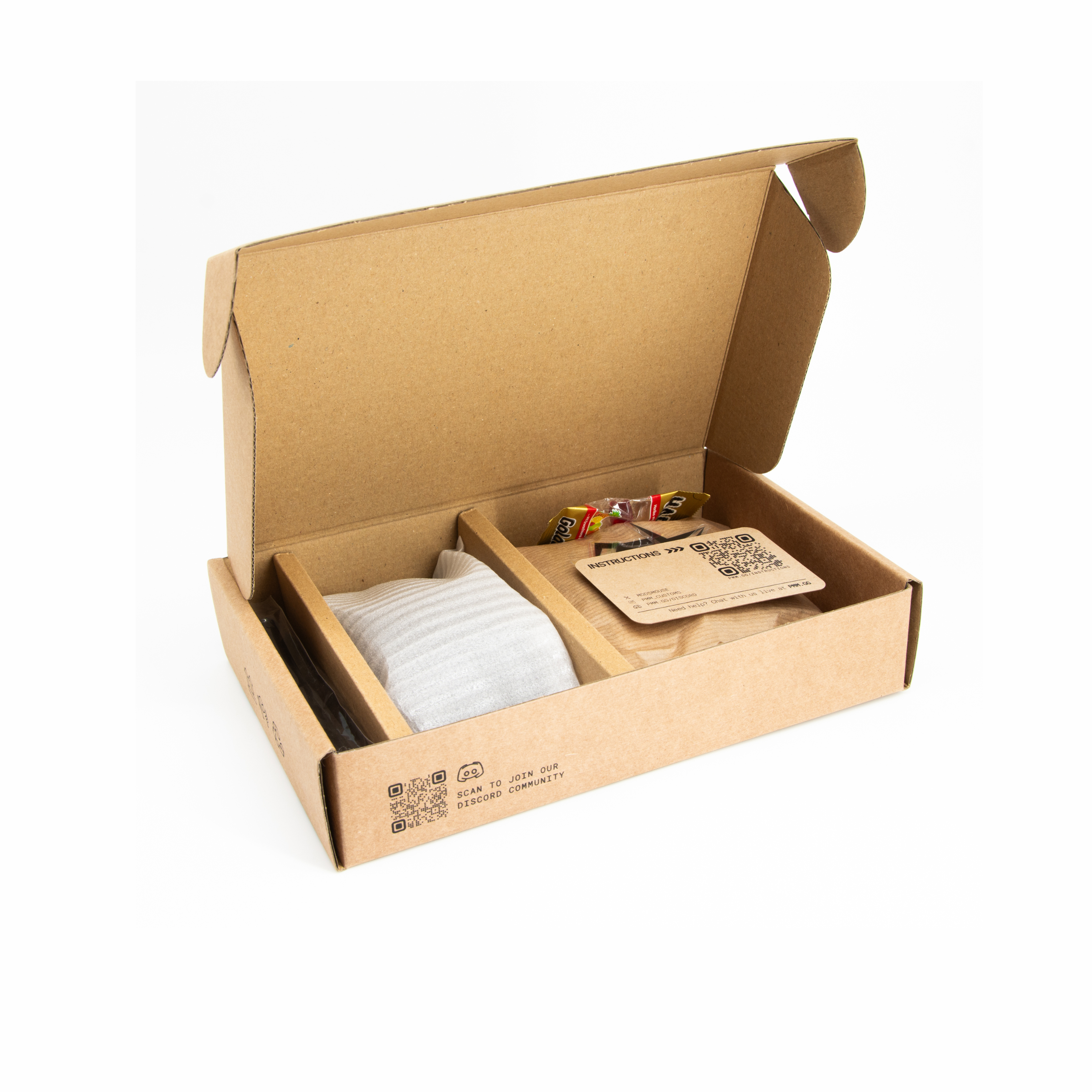
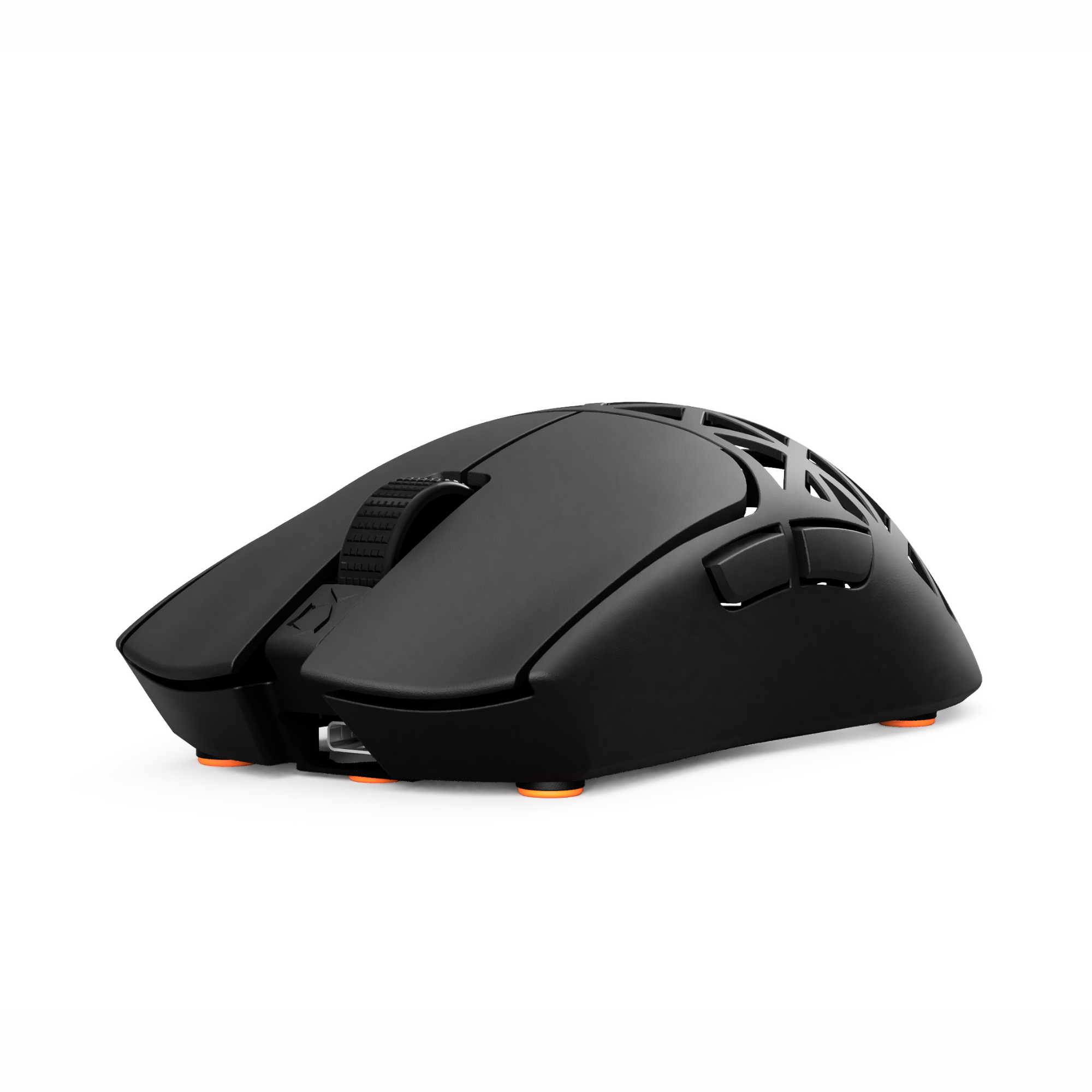
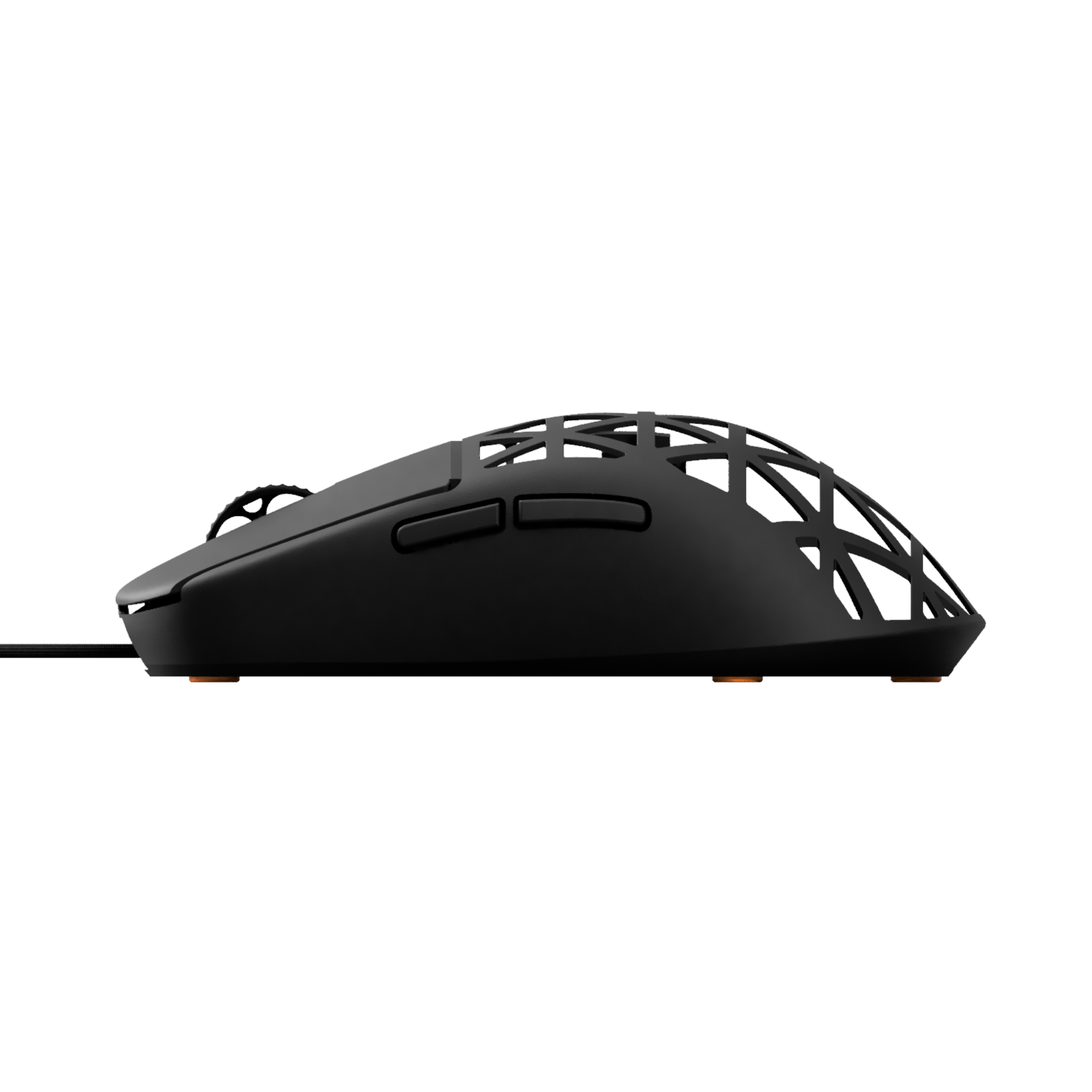
STEP 1: PREPARATION
We recommend watching a step, then assembling that step right after.
- Open the mouse using the pry tool.
- Add a spacer to each plunger using the tweezers.

STEP 1
STEP 2: SWITCH INSTALLATION
- Add switches with the big head screws.
- If the click is constantly activated, remove the spacer.
- Add the tension screws.
- Check the clicks.
- If you have too much pre-travel add another spacer on the plunger or turn the tension screws to the right.
- The click might change after full assembly, so don't make it too perfect at this point.
Note: If the screwholes of the tensioning system are too tight for the long screws, use the pointy screws to widen them first.

STEP 3: ADD SIDE BUTTON PCB
- Insert the side button PCB in the side button holder and secure the PCB with the big head screws.
- Add the carbon fiber rods
- Check the clicks. If there is a little bit of pre-travel, it will most likely disappear once the mouse is fully assembled.
Note: If you experience any problems, please join our Live Chat.

STEP 4.1: BASE PLATE
- Add the carbon fiber rod.
- Add the cable support and insert it in the holder in the front. The opening should face downwards.
Note: We recommend updating the OP1 8K firmware using the stock cable.

STEP 4.2 BASE PLATE
- Place the PCB under the hook in the front and secure the PCB with the pointy screws. Sometimes the hook can come out of the gap later during the assembly. You will notice if your left mouse button doesn’t work properly later.
- Plug in the cable in the PCB.

STEP 5: CONNECT BOTTOM AND TOP SHELL
- Connect both shells. Start in the front. Bend a little in the back and click the shell in.
- Check if all is aligned.
- Check and adjust the buttons.
- Open the shell again and connect all cables.
- Close the shell again.
Note: Make sure not to squeeze the cable between both shells. If you notice that your scrollwheel is tilted, the reason might be that the PCB is not under the hook in the front.

STEP 5: ADD THE SKATES & FINAL CHECK
Your Mod-kit should come with our dot skates but you can also use the OP1 8K skates that came with your OP1 8K box.

YOU DID IT!
Well done.
Apply grip tape if desired. On shells with standard coating, slightly sanding it will help with adhesion.
If you have any other problems, contact our support team at support@pmm.gg or in the live chat (Bottom left).
Have fun gaming!
TROUBLESHOOTING
1) Problem: Left mouse button feels stiff.
Solution: Check if the main PCB is under the hook in the front. If it’s not, the PCB is too high and the mouse button will hit the encoder.
2) Problem: Right mouse button feels weird.
Explanation: Tensioning screw touches charging cable.
Solution: Bend the charging cable away from the tensioning screw.
3) Problem: Mouse buttons activate too easily or are constantly activated.
Solution: Use the tensioning screw to calibrate the mouse buttons. If that doesn’t fix the problem, remove one spacer.
4) Problem: Mouse buttons don’t activate when clicked in the front.
Solution: Add a spacer.
5) Problem: Mouse wobbles.
Solution: You can slightly bend the mouse. This will adjust how the top shell sits on the bottom shell and release tension.
Solution 2: Make sure there are no cables between the sensor and carbon fiber rod
Watch how to remove wobble of your mouse below.

